














Wallpaper Engine
 (1 оценок, среднее: 5.00 из 5)
 Loading...
Similar Games









Description
What actually happens to your frame rate when an animated 3D wallpaper runs behind a fullscreen shooter? In Wallpaper Engine the answer comes down to automatic pausing: wallpapers pause or stop when a game or a maximized app takes over, depending on your settings, so the animated desktop only works while you can see it. That design choice is why the app sits comfortably next to Steam games in so many libraries, and why it pairs with almost any game you launch.
Scene, Video, Web and Application Wallpapers in Wallpaper Engine
Every wallpaper belongs to a type, and knowing which is which saves a lot of confusion once you start browsing. The four types behave very differently in how they are made, how they react to you, and how much they ask from your graphics card.
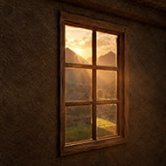
Scene wallpapers are the animated 2D and 3D creations built in the editor, with effects, particles and audio visualizers. They are the most flexible type, and many of them respond to your cursor.
Video wallpapers loop a clip and are the simplest to make. Local files accept several formats, including mp4, WebM, avi, m4v, mov and wmv, while the Steam Workshop only accepts mp4.
Web wallpapers run HTML pages, which is how many interactive clocks and dashboards are built. Application wallpapers go a step further and display certain running programs as your background.
Performance Settings That Keep Wallpaper Engine Out of Your Way
All of the performance controls live in the Performance tab of the settings, and it is worth opening before you subscribe to a dozen wallpapers. You can tell Wallpaper Engine to pause or fully stop the wallpaper while another application is in focus or a game is running fullscreen, including borderless windowed mode. Quality options let you trade visual detail for lighter resource use, so the same wallpaper can fit a gaming rig or a modest laptop.
The honest limit is that a detailed 3D scene still costs graphics power while it is visible. If you play a game in a window, or keep a wallpaper running on a second monitor, the automatic pausing may not apply the way you expect. Players with weaker graphics cards often end up lowering quality or choosing video wallpapers over scenes.
Check the Performance tab first, not last.
Finding Wallpapers in the Steam Workshop
The Discover and Workshop tabs are where most people spend their first hour. With well over a million wallpapers uploaded and new ones arriving every day, browsing by tag and category matters more than scrolling. Every wallpaper is a Workshop subscription at no cost, which means Steam remembers your choices and downloads them again if you reinstall Wallpaper Engine.
Music fans tend to head straight for audio visualizers that react to whatever is playing, while players who want something calm lean toward slow landscapes and looping scenes. Once you subscribe to a handful, the Installed tab becomes your home base, and playlists let you rotate wallpapers automatically instead of picking one every morning.
Multi-monitor setups are supported, so a dual-display player can give each screen its own wallpaper. Steam itself is only required for downloading and uploading wallpapers and for installing updates, and the core features keep working without it running in the background.
Building Your Own in the Wallpaper Engine Editor
The editor turns static images into animated scenes using effects, presets and particle systems, and it can also take video and HTML files as raw material. A large selection of presets means your first animated wallpaper can be a single image with a few effects applied, and that is a perfectly respectable place to start.
The honest drawback is the learning curve. New users regularly describe the editor as overwhelming, with layers, effects and properties all competing for attention at once. Starting from a preset instead of a blank scene keeps the first project small enough to finish.
When a wallpaper is ready you can keep it for yourself or share it on the Steam Workshop, and the companion app for Android lets you carry favorites to your phone. That sharing loop is why the library keeps growing and why Wallpaper Engine feels more like a community than a settings menu.
Wallpaper Engine rewards a little setup: pick a Scene or Video wallpaper from the Steam Workshop, tune the Performance tab so it pauses when your game starts, and let the desktop do something interesting while you are away from it.